![Asset-14.png]](https://4169409.fs1.hubspotusercontent-na1.net/hub/4169409/hubfs/Asset-14.png?height=410&name=Asset-14.png)
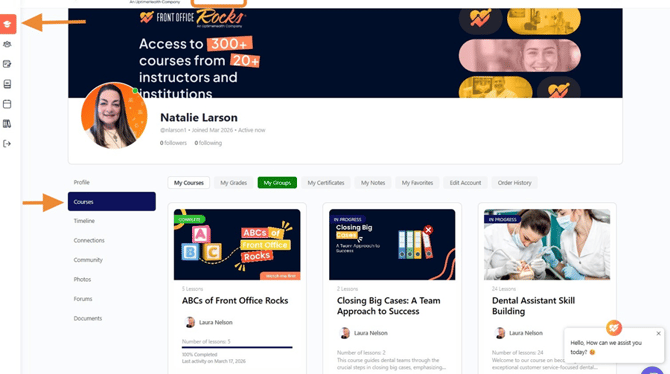
1. After logging into your Group Administrator account, navigate to your Courses dashboard.
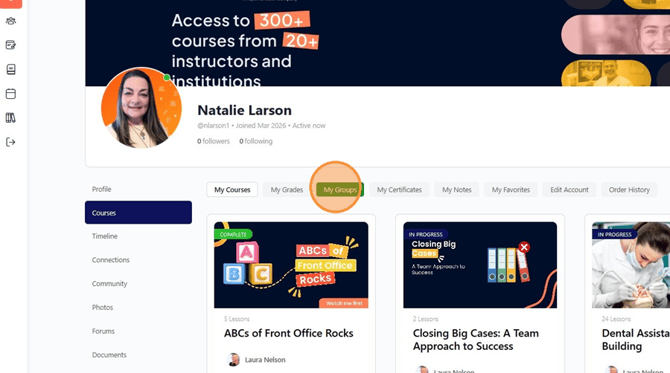
2. Select the "My Groups" tab.
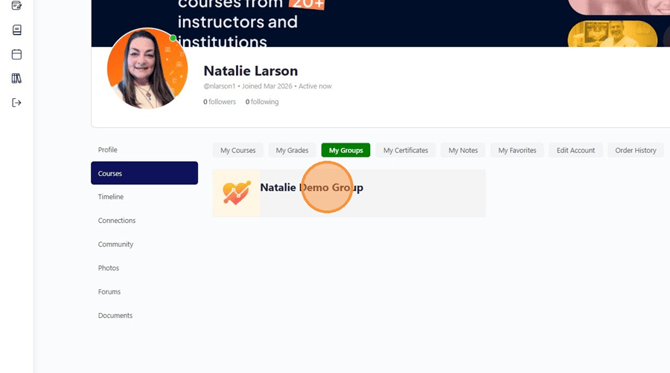
3. Click on your group.
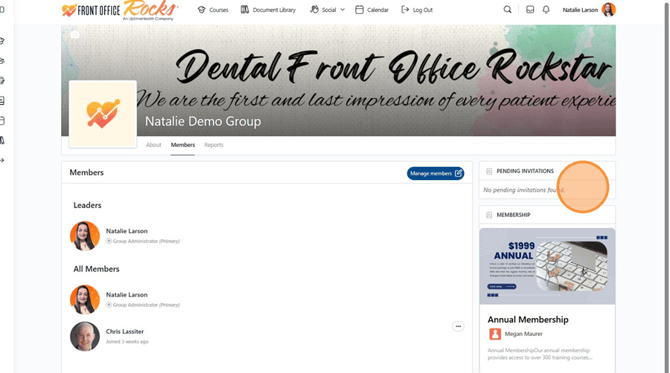
4. Navigate to the "Members" tab. Or you can click the "View All" link at the far right.
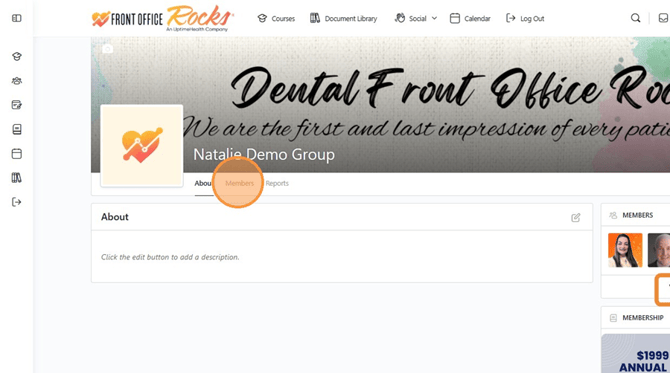
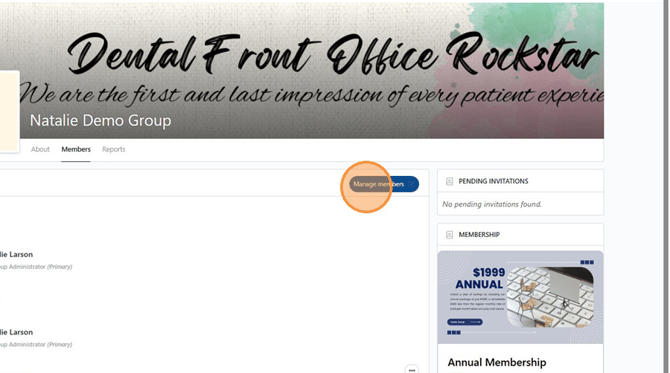
5. Click "Manage members" to send an invitation to your team members. We recommend sending invites to as many staff members as your seat allotment allows.
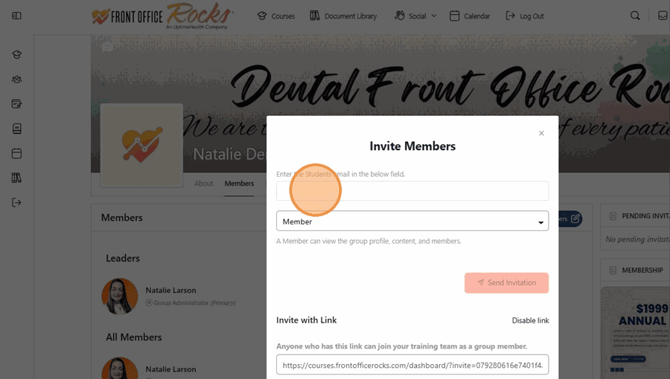
6. Enter the student's email, select their role from the dropdown, and click "Send Invitation".
**Please do not use generic emails that will be used repetitively over time for different staff. If they don't have a designated email that will only ever be used by them while employed by your practice, please use a personal email. An email can only be used one time in our platform as that is how it identifies the person completing the work and recording their individual progress.
7. The "Invite Members" window will close automatically.
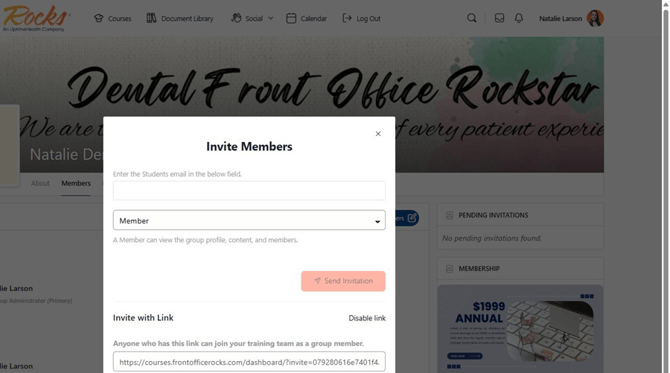
8. Their email address will populate in the Pending Invitations tab. The team member will receive an email from us that directs them to accept their invitation and finish registering their account. The password must be strong or they will get an error message. If they follow all of the steps correctly, they will be immediately logged in and have access to the dashboard their access level allows and can begin using the platform.
Their name will move to the Members list and then you can go to your Social -> Members tab. Search for them in the Search Members field on the top right by their last name. When you find your team members tile, click the Connect avatar to send a Connection request to add them to your contact library(My Connections).